How to Activate WILLER eSIM
iPhone(iOS)

IMPORTANT
Please read the "Important Notes Before Activation" carefully before you begin activation.
Activating via manual entry
Please refer to your "Contract Completion Email" or the "Contract Information Page" to view your activation code and necessary setup information.
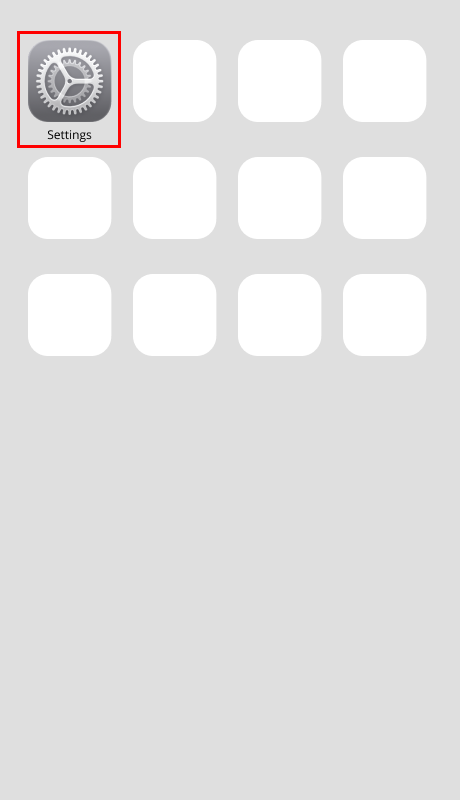
Step 1: Open "Settings."
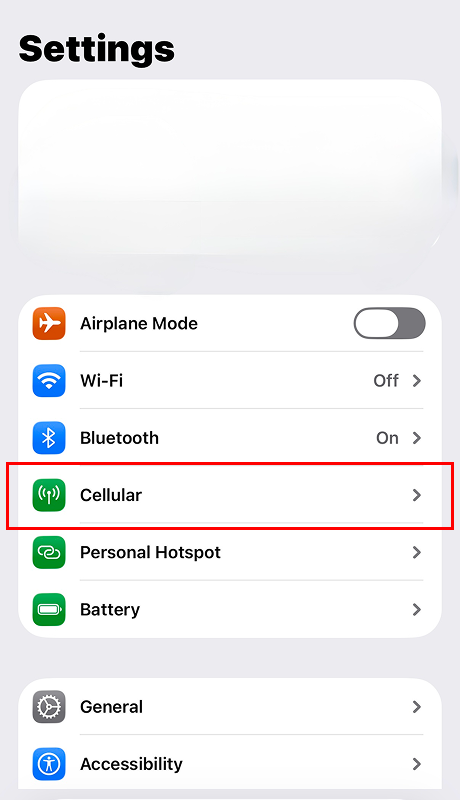
Step 2: Open "Cellular."
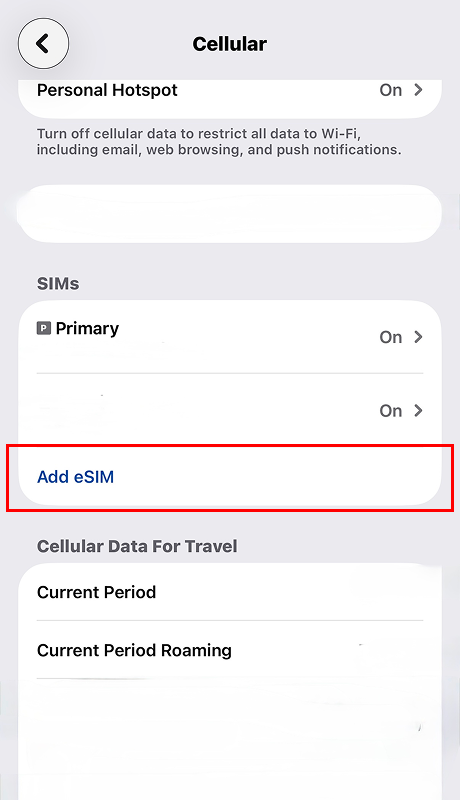
Step 3: Tap "Add eSIM."
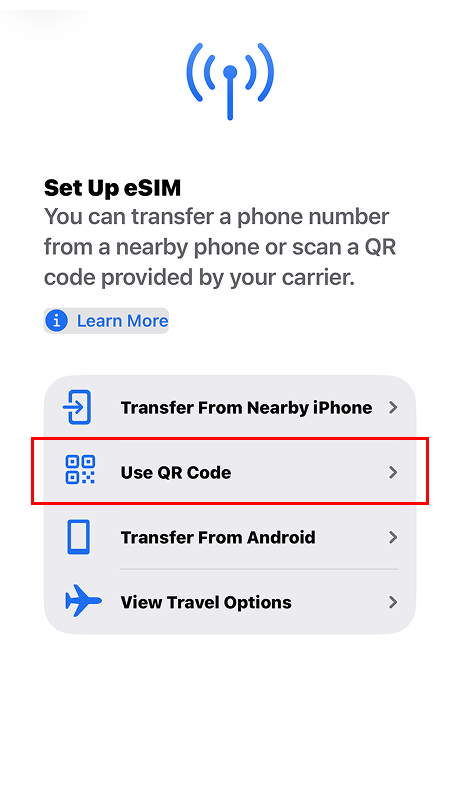
Step 4: Tap "Use QR Code."
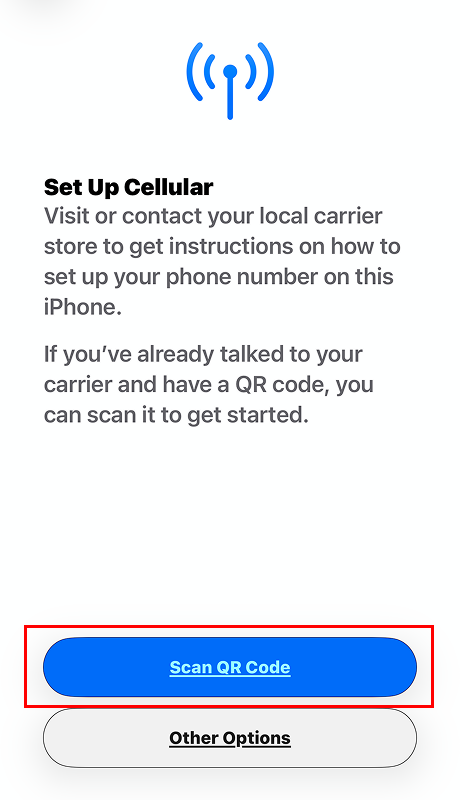
Step 5: Tap "Scan QR Code."
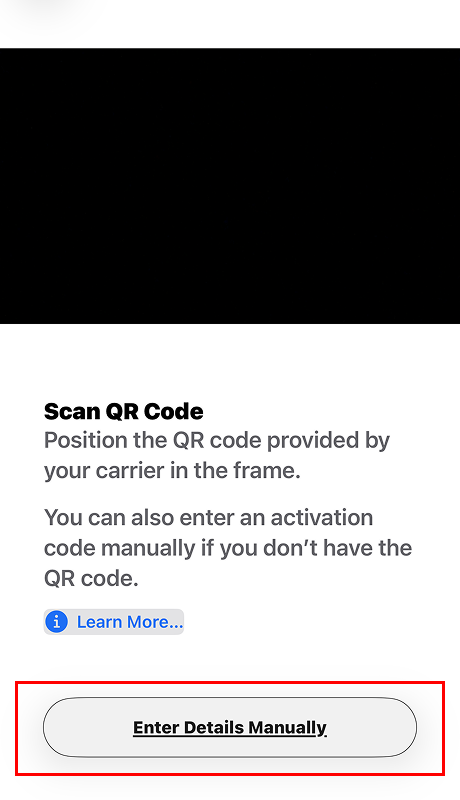
Step 6: Tap "Enter Details Manually."
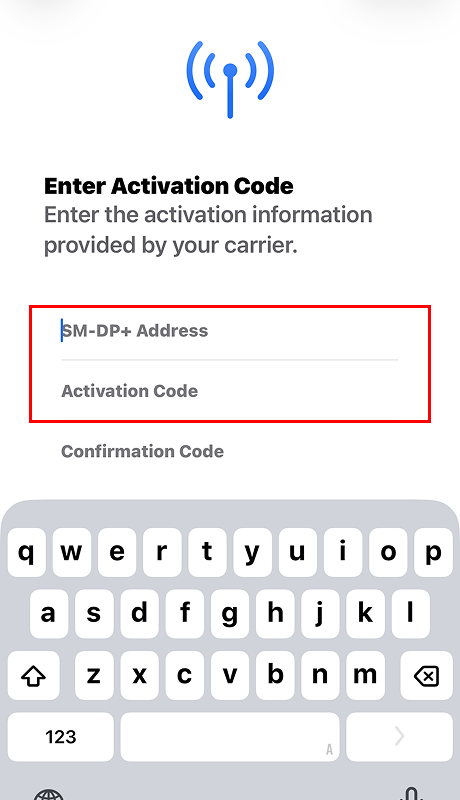
Step 7: Enter "SM-DP+ Address" and "Activation Code" (Leave the "Confirmation Code" field blank.)
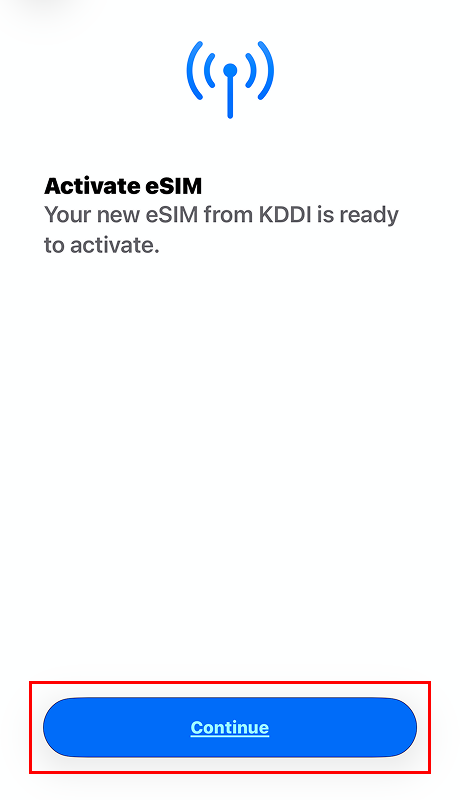
Step 8: Tap "Continue".
Step 9: Tap "Done" after the cellular set up is complete.
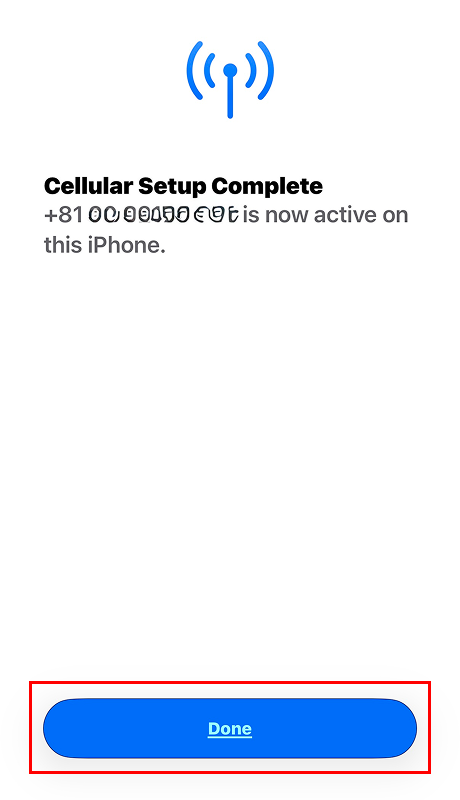
* Activation may take some time depending on your device.
Step 10: Tap "Continue".
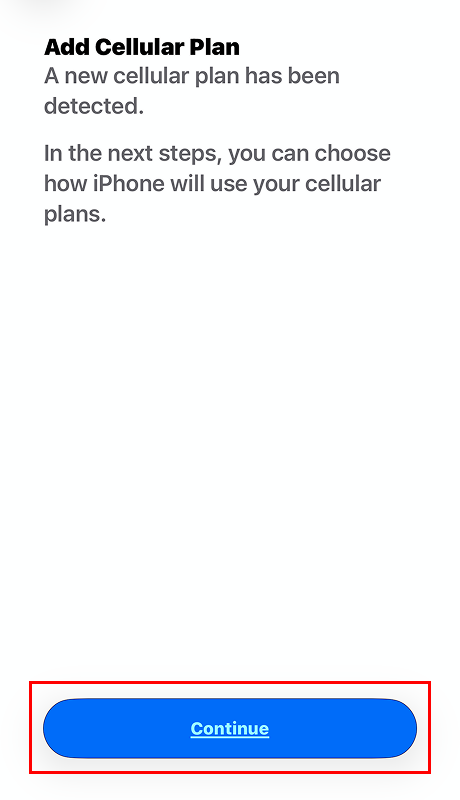
Step 11: Tap "Continue".
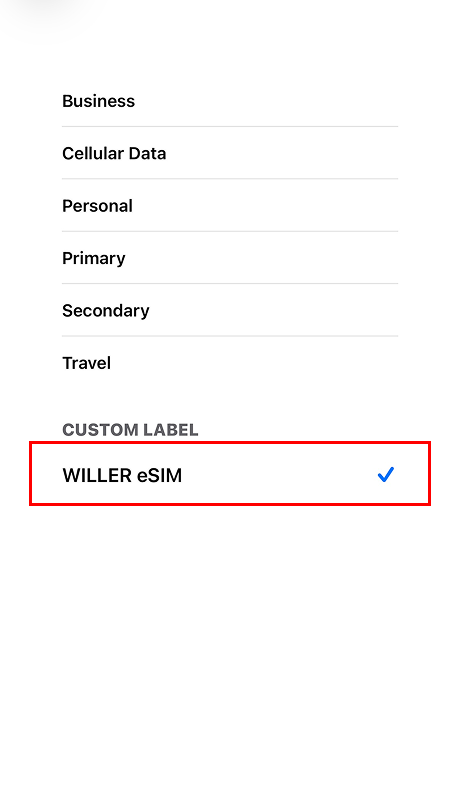
Step 12: Choose "WILLER eSIM."
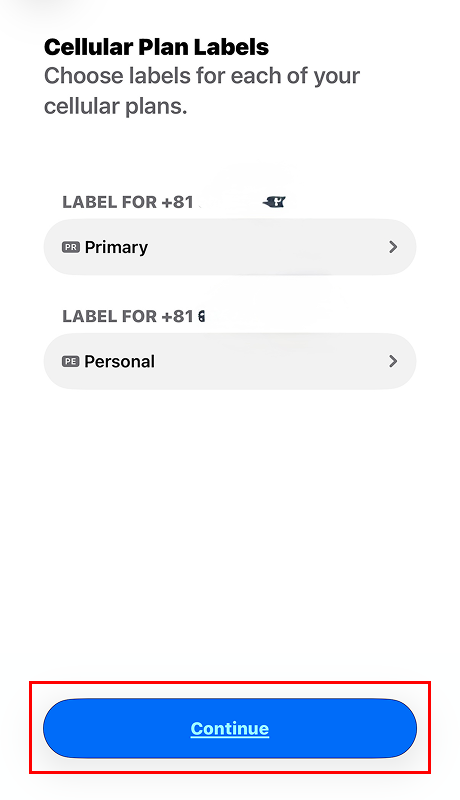
Step 13: Tap "Continue".
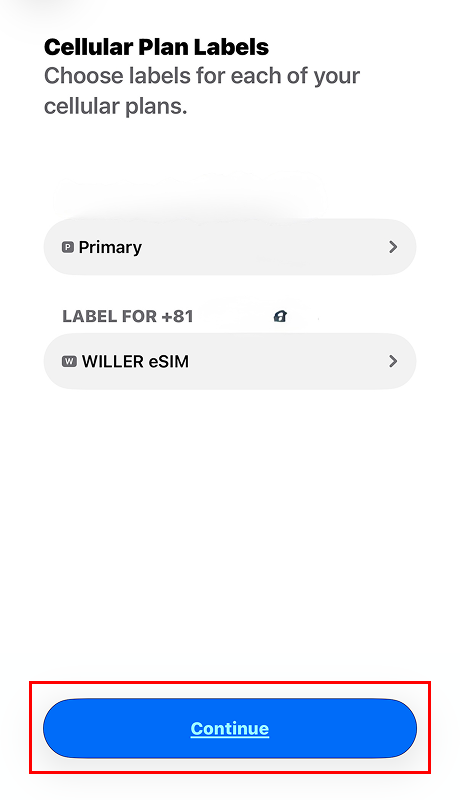
Step 14: Choose the line you want to use as the "Default Line," then tap "Continue."
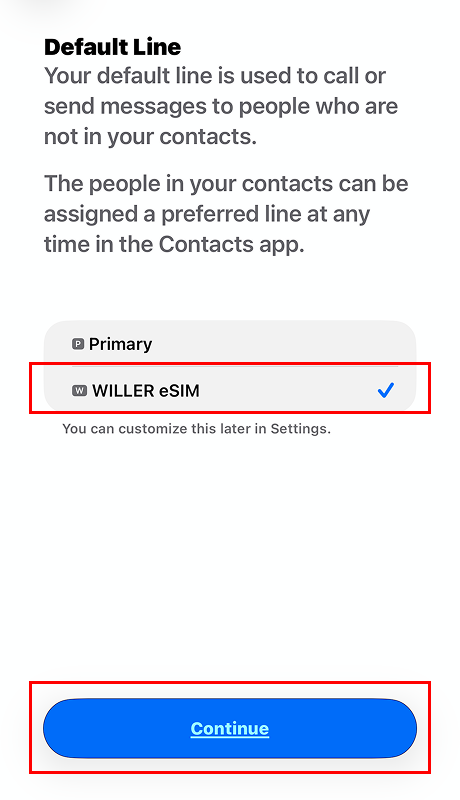
Step 15: Choose the line you want to use for iMessage and FaceTime, then tap "Continue."
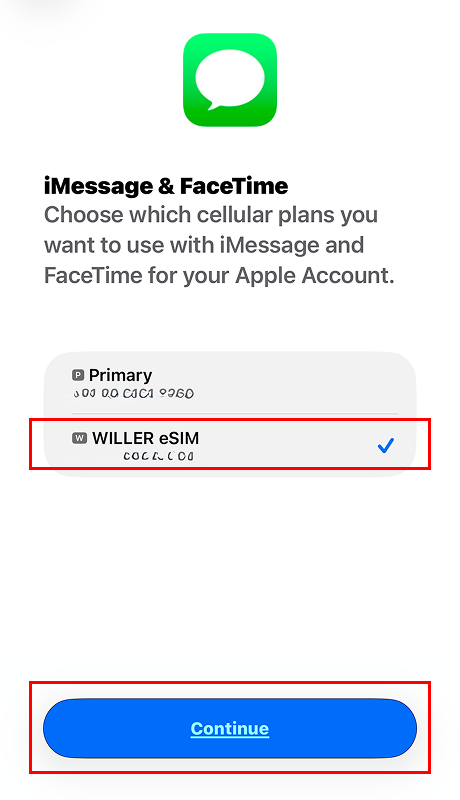
Step 16: Choose "WILLER eSIM" as your line for "Cellular Data" and tap "Done."
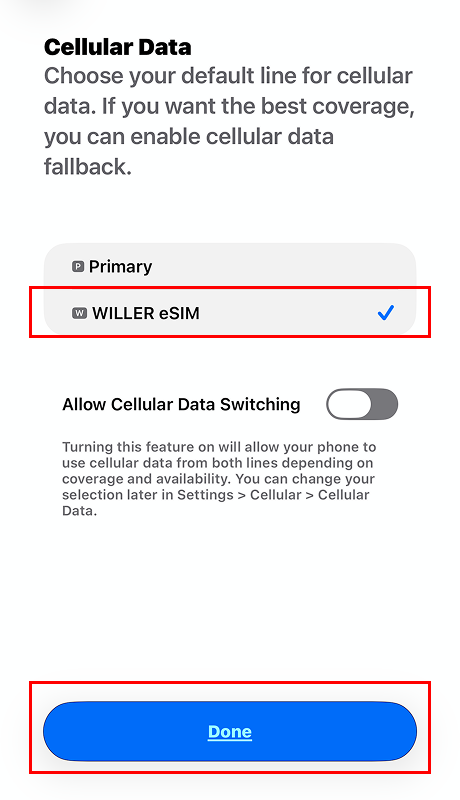
* If you have not yet arrived in Japan, please select your primary line.
* The eSIM name may appear as "au" or "KDDI," but this is not an issue. Please proceed with the setup.
Activating with a QR Code
The QR code required for activation can be found in your "Contract Completion Email" or on the "Contract Information Page."
Step 1: Open "Settings."
Step 2: Open "Cellular."
Step 3: Tap "Add eSIM."
Step 4: Tap "Use QR Code."
Step 5: Tap "Scan QR Code."
Step 6: Scan the QR Code.
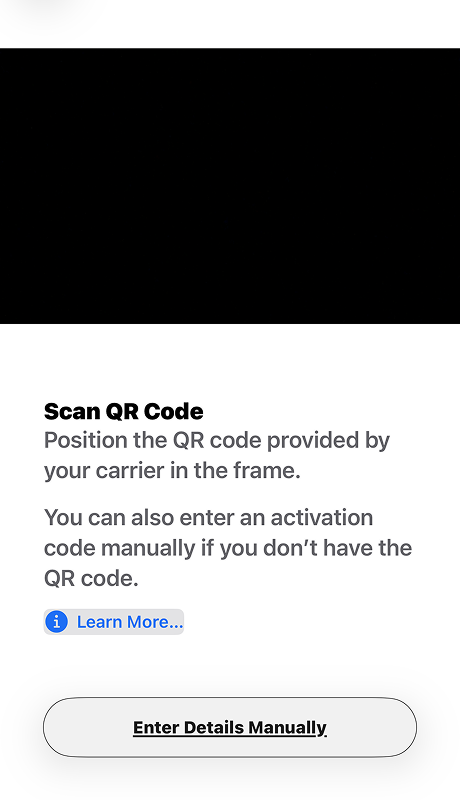
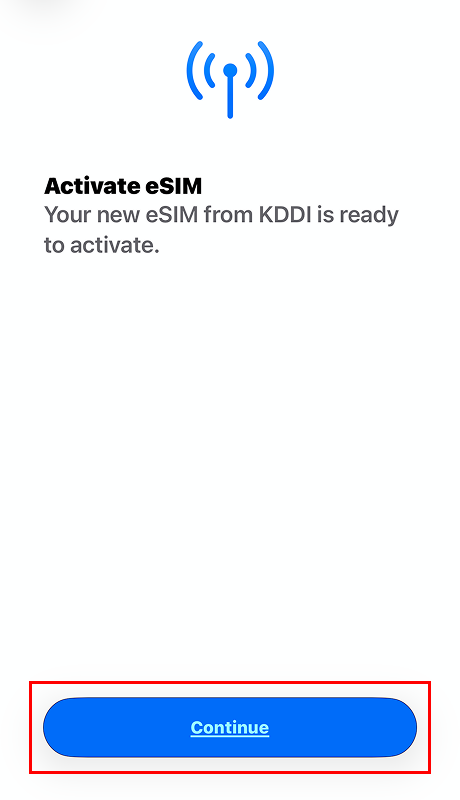
Step 7: Tap "Continue."
Step 8: Tap "Done" after the cellular set up is complete.
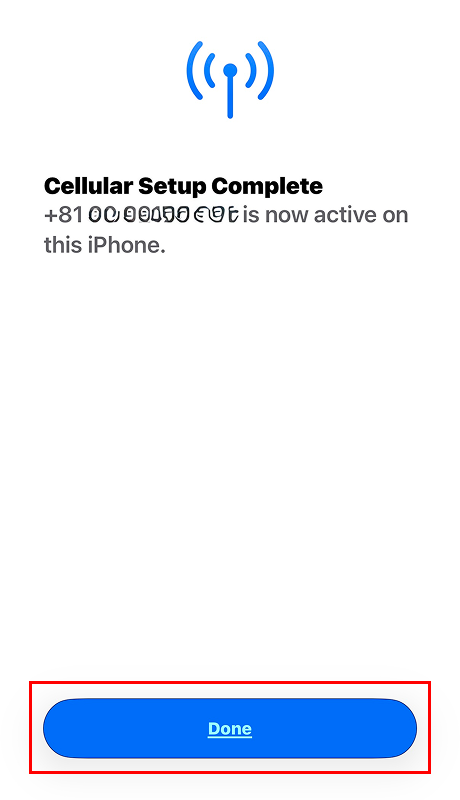
* Activation may take some time depending on your device.
Step 9: Tap "Continue".
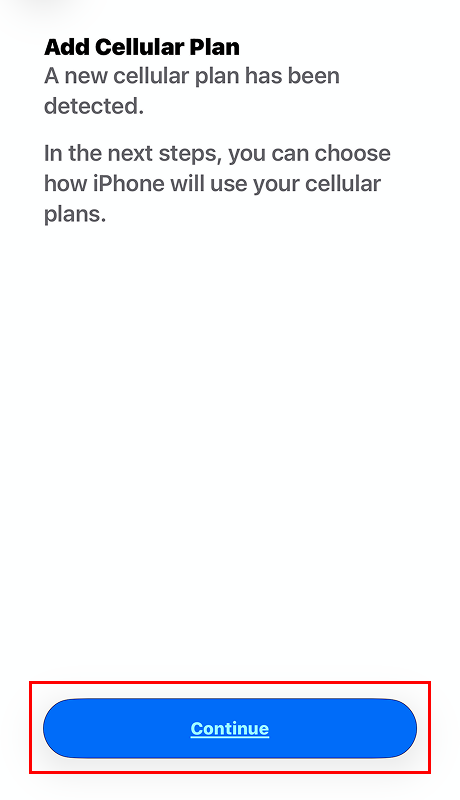
Step 10: Tap "Continue".
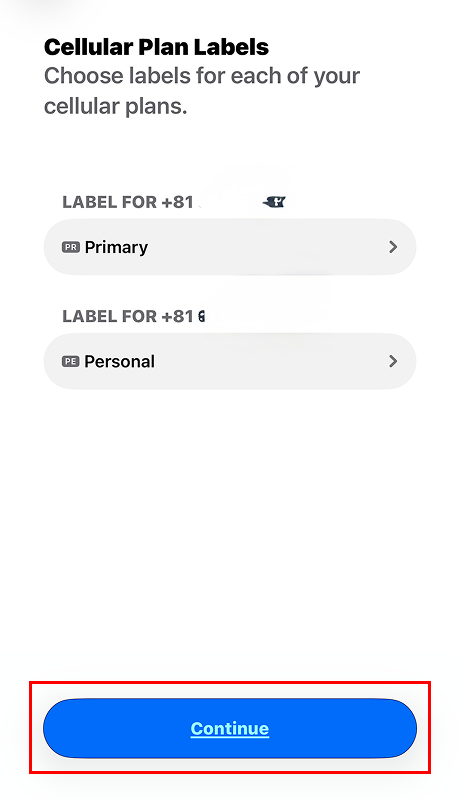
Step 11: Choose "WILLER eSIM."
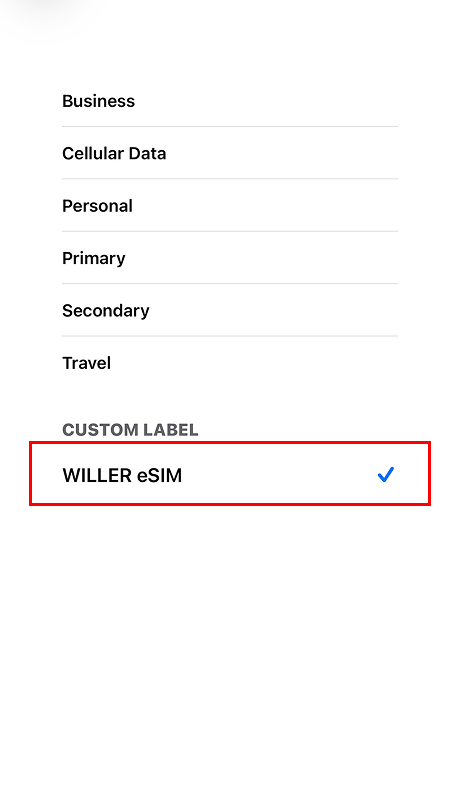
Step 12: Tap "Continue".
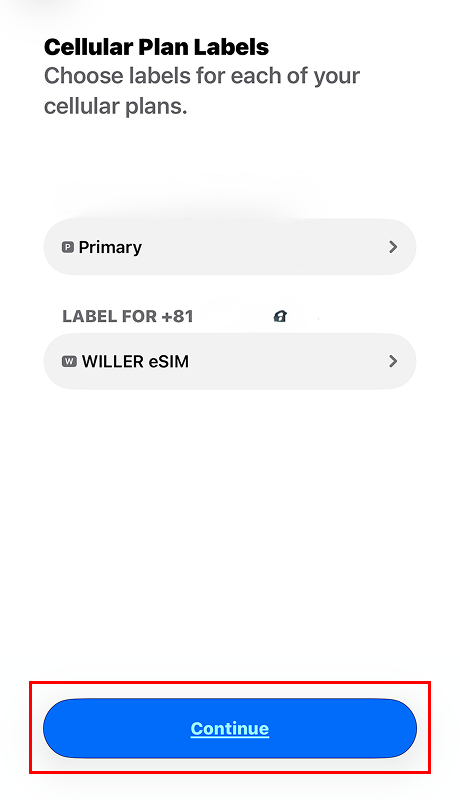
Step 13: Choose the line you want to use as the "Default Line," then tap "Continue."
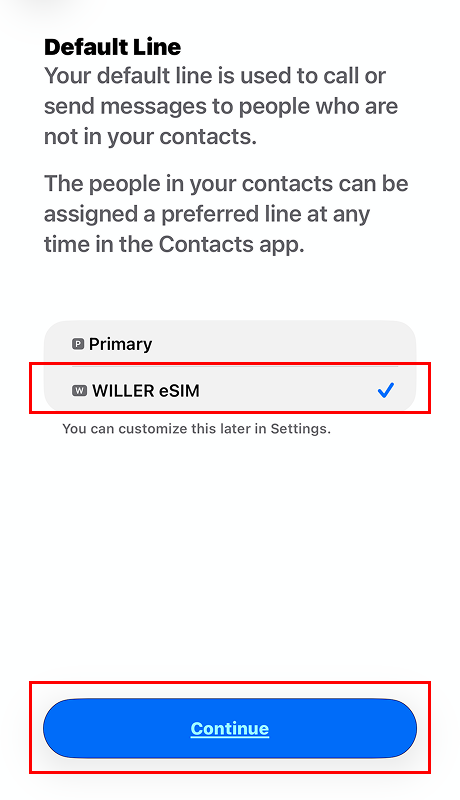
Step 14: Choose the line you want to use for iMessage and FaceTime, then tap "Continue."
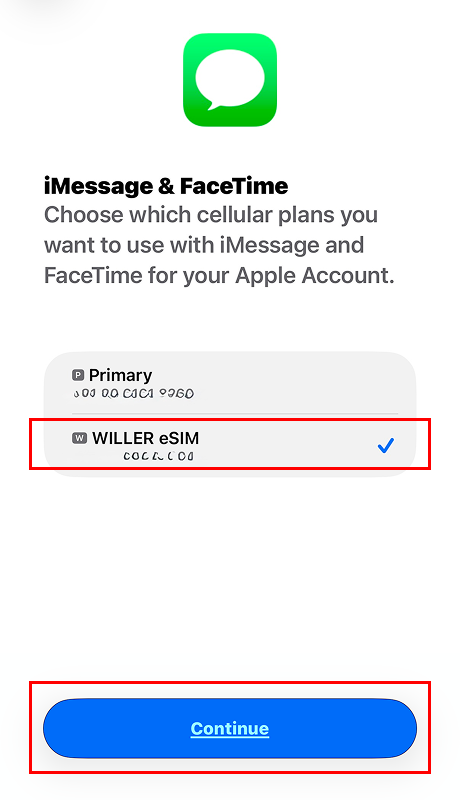
Step 15: Choose "WILLER eSIM" as your line for "Cellular Data" and tap "Done."
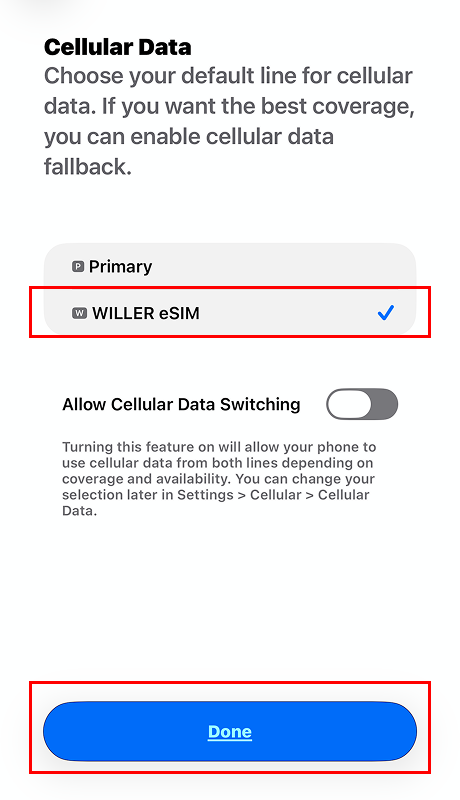
* If you have not yet arrived in Japan, please select your primary line.
* The eSIM name may appear as "au" or "KDDI," but this is not an issue. Please proceed with the setup.
Setup after arriving in Japan
Step 1: Open "Settings."
Step 2: Open "Cellular."
Step 3: Choose "WILLER eSIM."
Step 4: Toggle "Turn On This Line" to ON.
Step 5: Tap "Cellular Data" and choose "WILLER eSIM."
* Once the status of "WILLER eSIM" changes from "Activating" to "On," you are ready to start using it.
* If your primary line supports international roaming, please turn off "Data Roaming" for that line. This will disable roaming charges while allowing you to stay online in Japan using WILLER eSIM.
APN Settings
1. If you encounter issues with internet connectivity or tethering while using WILLER eSIM, please check your APN settings.
* In most cases, APN settings are configured automatically on iOS, so manual setup is not required.
* Depending on your device model, the APN may be displayed as a default option automatically, but 5G connectivity might not be available. If this occurs, please select "4G" in your cellular settings to enable the connection.
2. For some models, if you wish to use tethering, you may need to manually add ",dun" to the "APN Type" field (as it may not be automatically included even when other settings are applied.)
* If the "APN Type" field already contains other text, do not delete it. Simply add ",dun" at the end of the existing text.
* If you see the error message "Your carrier does not allow adding APNs of type dun" after entering ",dun," please try entering it in uppercase as ",DUN" instead.
3. KDDI APN settings are configured automatically. However, if APN settings from another MVNO or carrier remain on your device, please delete them using the following steps.
[Settings] > [General] > [VPN & Device Management] > [Delete Configuration Profile]
* Name varies by MVNO
APN Name: au5g.au-net.ne.jp
Username: user@au5g.au-net.ne.jp
Password: au
Authentication Type: CHAP
For more information about eSIM, please visit our FAQ.
FAQ